Troubleshooting 2FA Login Issues on NoxHash
Can't get past the 2FA prompt on NoxHash? Fix clock drift, lost phones, wiped authenticators, and recovery-code problems with this step-by-step guide.

Stuck at the NoxHash 2FA screen? In more than 90% of cases it's one of three fixes: sync your phone's clock, type the freshest 6-digit code, or use one of your 8 single-use recovery codes. This guide walks every common failure — from clock drift to a wiped authenticator — and shows exactly what to do next.
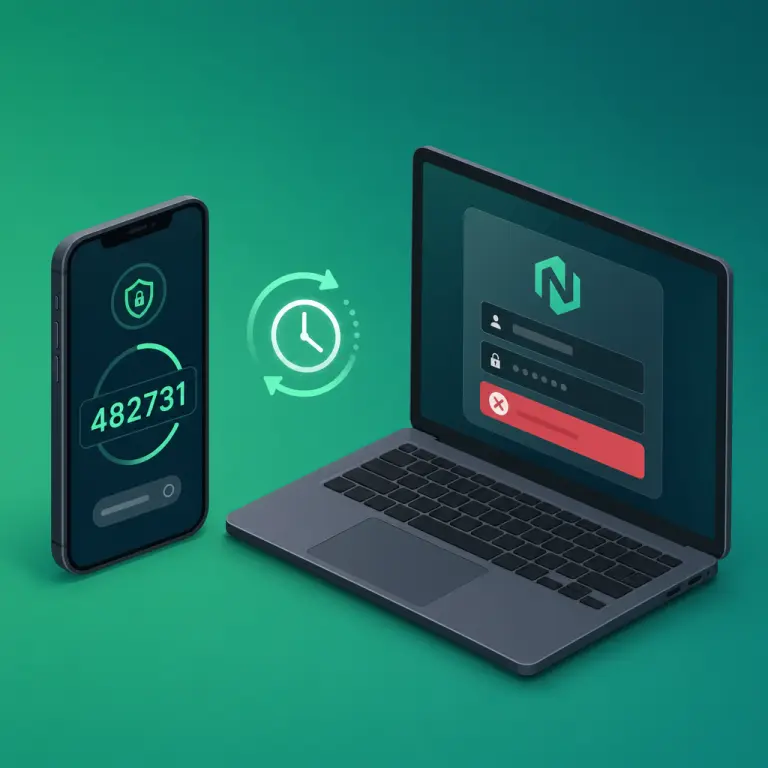
Why the 2FA Prompt Rejects Your Code
NoxHash uses the TOTP protocol (RFC 6238): your authenticator and our server each derive the same 6-digit code from a shared secret plus the current Unix time, rounded to 30-second windows. Per NIST SP 800-63B, this strict time-bound matching is exactly what makes TOTP a trusted second factor. When a code is rejected, it's almost always because one of those inputs doesn't match — the clock is off, the code has expired, or the shared secret is gone from your phone.
Decision Tree: What Kind of 2FA Issue Do You Have?
Before jumping to fixes, run through this three-question triage. It will point you to the right card below and save you trying solutions that don't match your situation.
Do you still have the phone with your authenticator app?
- YYes — go to question 2.
- NNo — jump to Issue 3 (phone reset / wiped app) or Issue 4 (lost phone + codes).
Does the app still show a "NoxHash" entry with a rotating 6-digit code?
- YYes — go to question 3.
- NNo — the secret is gone. Use a recovery code (Issue 3), then re-enroll.
You typed a code and NoxHash rejected it. Did you type it within the 30-second window shown on the app?
- YYes — most likely clock drift (Issue 1) or wrong account (Issue 7).
- NNo — the code expired (Issue 2); grab the fresh one and try again.
Issue 1 — "Invalid code" even though the app shows it
Cause: clock drift on your phone
If your phone's clock is off by even ~30 seconds from the server, the generated code won't match. This is the single most common reason a code gets rejected — often after travel, a battery-dead reboot, or switching SIMs.
Fix (60 seconds):
- Android: Settings → System → Date & time → toggle Set time automatically and Set time zone automatically on.
- iPhone: Settings → General → Date & Time → toggle Set Automatically on.
- Google Authenticator also ships a built-in fix: open the app, tap the 3-dot menu → Settings → Time correction for codes → Sync now.
- Wait for the app to generate a fresh code, then type it into NoxHash.
Issue 2 — You typed an old code that just rolled over
Cause: the 30-second window expired mid-type
Codes rotate every 30 seconds. Read at second 29, submit at second 31, and NoxHash already expects the next code. A small server-side grace window helps, but a code that was "about to flip" when you copied it often fails.
Fix:
- Wait for the countdown ring in your app to reset to a full circle (a brand-new 30-second window).
- Type the fresh 6-digit code immediately — don't linger.
- If you're slow-typing, copy-paste the code from the authenticator app clipboard instead.

Issue 3 — Phone reset or authenticator app wiped
Cause: the shared secret lives on the device
Factory-resetting the phone or clearing the authenticator's data wipes the shared secret. Reinstalling the app won't bring it back — without the secret, no generated code will validate.
Fix: use a recovery code to get in, then re-enroll
- On the NoxHash login form, enter your email and password as usual.
- At the 2FA prompt, click the Use a recovery code instead link.
- Type one of your 8 codes (format
XXXX-XXXX). Each code is single-use; once consumed it's gone. - Once signed in, go to Profile → Two-Factor Auth, click Disable 2FA (password required), then click Enable 2FA to generate a fresh QR and scan it with a freshly-installed authenticator on your phone.
- Save the brand-new set of 8 recovery codes somewhere redundant.
Issue 4 — Lost phone AND recovery codes
Cause: both factors are gone — support-driven recovery only
This is the worst case and the whole reason we urge you to store recovery codes in two separate places. If both the phone and all 8 codes are lost, only NoxHash support can verify your identity and manually reset 2FA on your account. The process is deliberately slow because it also protects you from impersonators.
Fix: contact support with ownership proof
- Email support from the exact email address registered on your NoxHash account — mismatched sender addresses will be rejected.
- Include details that only the owner would know: approximate registration date, last deposit amount/network, a miner you've rented, and (if possible) a recent login IP or country.
- Expect a wait — identity verification can take 1–3 business days. Don't create a second account or send duplicate emails; that slows things down.
- Once verified, support disables 2FA on your account so you can sign in, re-enable it, and issue fresh recovery codes.
Issue 5 — Switching phones (old phone still accessible)
Goal: migrate cleanly, no broken intermediate state
The common mistake is moving the QR image, or assuming a phone backup will carry TOTP secrets across. The safe path is to generate a brand-new secret on the new phone.
Fix: disable on the old phone, re-enable on the new one
- While still signed in on any device, open Profile → Two-Factor Auth and click Disable 2FA. Your password is required.
- Install your authenticator app on the new phone. Delete the stale "NoxHash" entry from the old phone.
- Back in NoxHash, click Enable 2FA, scan the fresh QR with the new phone, confirm with a 6-digit code.
- Save the new set of 8 recovery codes — the old set is now invalid.
Fixed the clock? Sign back in and re-arm your 2FA
Once you can log in again, take 60 seconds to confirm the authenticator still works and that you have a fresh, unused recovery code stashed somewhere other than your phone. A working 2FA is only as strong as its backup plan.
Issue 6 — Authenticator cloud backup lost or corrupted
Cause: restore brought in stale or empty secrets
Authy and cloud-synced Google Authenticator can occasionally restore entries that don't work — a known edge case when the cloud backup was paused, when you sign in from a different region, or when the previous device was revoked. The NoxHash entry may show 6 digits, but they'll never validate.
Fix: treat it as a lost secret
- Don't waste recovery codes trying the bad entry — one attempt is enough to confirm.
- Use a recovery code to sign in.
- Disable 2FA, delete the broken entry from the authenticator, then re-enable 2FA on NoxHash and scan the fresh QR.
- For higher resilience, add the NoxHash entry to two authenticators (e.g., Authy on phone + 1Password on desktop) during enrollment — if one breaks, the other still works.
Issue 7 — Wrong account selected in the authenticator
Cause: you typed a code from the wrong TOTP entry
If your authenticator holds entries for GitHub, Binance, NoxHash, email, and more, it's easy to glance at the one above or below and type the wrong 6 digits. The code looks valid but belongs to a different site — and NoxHash rejects it as if it were random.
Fix:
- Scroll the app until you see the entry labeled NoxHash (or whatever you named it during setup).
- Copy the code from that entry specifically — most apps let you tap the entry to expand and copy.
- If your app supports folders or tags, group crypto-related entries together and label NoxHash clearly to avoid repeat mistakes.
Four Habits That Prevent Most 2FA Lockouts
Keep auto time-sync on
Never set your phone's clock manually. Set automatically stays synced with NTP and kills clock-drift rejections before they happen.
Store recovery codes in two places
Password manager and a printed copy in a drawer. If one survives a disaster, you're in — without support tickets.
Label the entry clearly
Rename the authenticator entry to "NoxHash — youremail" so you never copy the wrong 6 digits in a hurry.
Migrate before you switch devices
Don't factory-reset the old phone until 2FA on the new one is confirmed working. A 5-minute overlap saves hours of recovery work.
Frequently Asked Questions
Why does my 2FA code keep being rejected when it looks correct?
Clock drift is the overwhelming cause. TOTP codes depend on your phone's clock matching the NoxHash server within roughly 30 seconds. Enable automatic time sync (Settings → Date & Time → Set automatically) or use Google Authenticator's Time correction for codes → Sync now, then try the freshest code.
How do I use a recovery code instead of the app?
On the 2FA prompt after signing in with email and password, click the Use a recovery code instead link. Enter one of your 8 single-use codes (format XXXX-XXXX). Once accepted, it's consumed permanently — so immediately regenerate a fresh set from Profile → Two-Factor Auth after you get in.
Can NoxHash support turn off 2FA for me?
Yes, but only after identity verification. Email support from your registered address with ownership details (approximate signup date, last deposit network and amount, miners rented). Expect 1–3 business days. We deliberately make it slow so that attackers who compromise your email alone can't impersonate you.
I restored my phone from a backup — why doesn't the NoxHash entry work?
Most authenticator apps don't include TOTP secrets in a full phone backup — those secrets are scoped to the authenticator app's own sync system. If you didn't enable that app's cloud backup before the restore, the secrets are gone. Use a recovery code and re-enroll with a fresh QR.
Should I ever disable 2FA permanently to avoid these problems?
No — 2FA lockouts are painful, but far less painful than an emptied BTC balance from a credential-stuffing attack. Nearly every lockout is preventable with auto time-sync and two-location recovery-code storage. Keep 2FA enabled on any account that holds cryptocurrency or earnings.
Does 2FA also protect withdrawals, not just login?
2FA is primarily the login gate. Withdrawal requests go through a separate admin-review step, and any suspicious withdrawal from a recently-accessed account is flagged. If you ever suspect a login you didn't authorize, disable 2FA from Profile, change your password, re-enable 2FA with a fresh secret, and contact support.
Security guidance, not financial advice
This guide covers 2FA troubleshooting only. It is educational and does not constitute financial, legal, or tax advice. Cryptocurrency accounts are high-value targets — combine 2FA with a unique password, a trusted device, cautious link habits, and redundant recovery-code storage. Past security practices do not guarantee future account safety; responsibility for protecting the account ultimately rests with the account holder.