Mining Desktop: Control Your Rented Miner From the Browser
Open the real Windows Server session of your rented miner in NoxHash. Watch live CGMiner output, system stats, and hashrate straight from the browser.

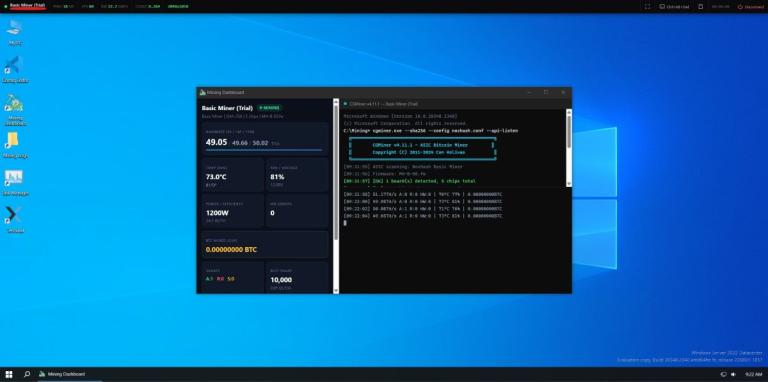
Mining Desktop is a new NoxHash feature that opens the real Windows Server session of your rented ASIC miner inside your browser. You see live CGMiner output, the actual hashrate being submitted to the pool, CPU and memory stats, and the miner's file system — not a simulated dashboard, but the machine itself running in our Kazakhstan facility.
What the Mining Desktop Actually Is
Most cloud-mining platforms show you a polished dashboard with a hashrate number and ask you to trust it. NoxHash takes the opposite approach. Every paid miner in your account has a View Desktop button that streams the actual Windows Server session of the physical ASIC straight into your browser — no app to install, no VPN, no RDP client.
When you click it, you are not looking at a screenshot or a visualisation. You are driving the same desktop our on-site technicians see in Kazakhstan when they walk up to the rack. The console you watch is CGMiner submitting shares to the pool right now. The CPU and memory graphs come from the machine's own Task Manager. The files in the file manager are the files on that specific miner's disk.
What You See When You Open It
A full remote desktop can feel like a lot on first open, so here is the short tour of the three things most people look at first — and what each one tells you about the machine earning for you.
Live CGMiner console
The CGMiner terminal scrolls in real time with accepted shares, hashrate per chip, and pool messages. Numbers here are the same ones our pool is paid on — so what you see is what you earn.
Real system stats
CPU load, RAM usage, disk, network throughput — pulled straight from Windows Server's built-in tools. A healthy miner sits quiet on CPU (CGMiner does the work on the ASIC chips) and shows steady network I/O to the pool.
Live file manager
Browse the miner's Windows file system — config files, CGMiner logs, Windows event logs. Useful if you want to verify the pool URL or see exactly which CGMiner version is running on your rented machine.
Why We Built It — Proof Over Promises
Cloud mining has a trust problem, and we know it. A decade of scams and "ghost farms" in the space has trained smart users to ask a simple question: is there actually a machine running, or is this a spreadsheet dressed up as a platform?
A number on a dashboard cannot answer that question. A screenshot cannot either. A live desktop session can. When you open the Mining Desktop and watch CGMiner log accepted shares in the terminal while the Task Manager shows steady network throughput, the chain of evidence is concrete: that output is coming out of a real OS, that OS is running on real silicon, that silicon is hashing against the real Bitcoin network.
We cannot show you the rack number or the street address (physical-security rules), but we can show you the machine's own screen. For most people, that is a better answer than a location pin anyway.
Opening Your Miner's Desktop in Three Steps
The flow is short enough that you can do it on your phone while the kettle boils. From a logged-in NoxHash account:
Open the miner in your dashboard
Go to My Miners, pick any active rental (the 2-day Basic Miner trial counts), and expand its card. You'll see its tier, hashrate, days remaining, and a row of action buttons.
Click View Desktop
A new browser tab opens a secure remote session to the machine. First connect typically takes two to four seconds — after that, streaming is smooth enough to see CGMiner's output scroll in real time.
Inspect anything — safely
Click around Task Manager, open CGMiner's config, check Windows Event Viewer. The session is sandboxed so you cannot break core mining services, and every disconnect triggers an auto-recovery check on our side.
Try the three steps on a trial miner
The fastest way to understand the Mining Desktop is to open one. Create a free account, claim the 2-day Basic Miner trial, and click View Desktop — you'll see the live CGMiner console within seconds, without spending a cent.
A Windows Server Stripped Down for Mining Only
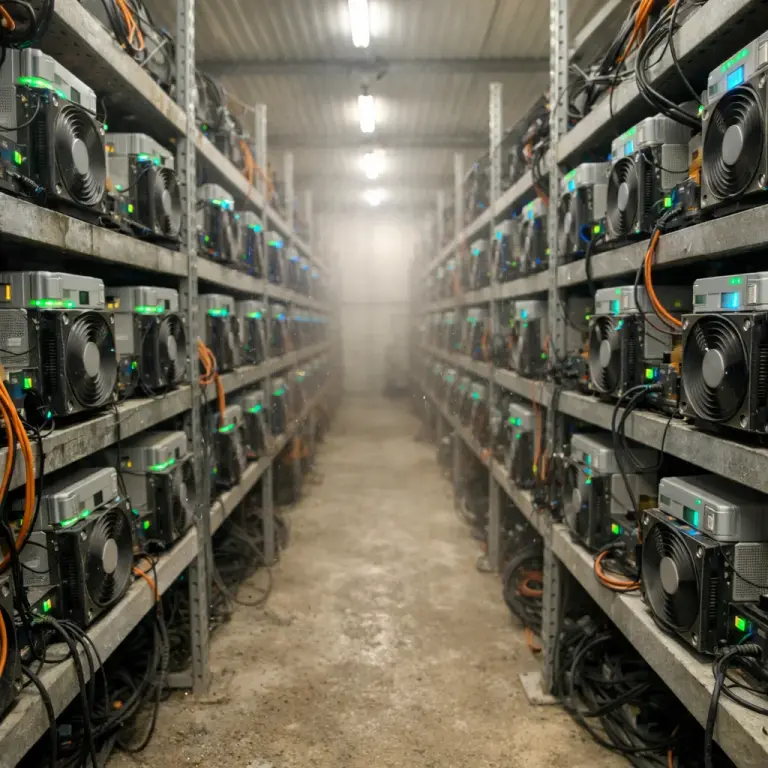
When you first open a Mining Desktop you may notice the OS feels unusually quiet — no notifications, no app popups, no antivirus pinging. That is deliberate. The Windows Server image every NoxHash miner boots into is a mining-only build: everything unrelated to hashing has been removed, disabled, or permanently switched off so that 100% of the silicon's capacity goes to producing BTC.
Kept — and running 24/7
CGMiner with auto-restart, a local watchdog process, the network stack tuned for pool latency, remote-access service, and just enough of Windows Server's core to boot and recover cleanly.
Removed or disabled
Windows Store, Cortana, OneDrive, Xbox services, Print Spooler, Defender real-time scanning, telemetry, search indexing, Superfetch, and every background update task that would otherwise steal cycles.
Auto-recovery on crash
If CGMiner quits unexpectedly, the watchdog restarts it within seconds. If the OS itself freezes, our NOC picks up the alert and power-cycles the machine remotely — users do not lose minutes of mining to a soft hang.
Sandboxed user access
You can look at logs, browse files, open Task Manager — but core mining services are protected. The Mining Desktop is read-intensive by design, so casual clicking cannot stop the machine earning for you.
Frequently Asked Questions
Is my data safe when I open the Mining Desktop?
Yes. The session is tunneled through an authenticated, encrypted channel tied to your NoxHash login. The miner itself never stores personal data — no wallet keys, no email, no balance. It only runs CGMiner, and the Windows image is reset when the rental period ends.
Can I accidentally break the miner and lose earnings?
Practically no. Core mining services are protected, and the watchdog auto-restarts CGMiner within seconds of any unexpected stop. Even if you closed the terminal on purpose, the miner would be back online before you finished refreshing the dashboard.
What exactly does the CGMiner console show?
It shows accepted and rejected shares, current hashrate per ASIC chip, pool difficulty, fan speeds, temperature per board, and network messages to and from the mining pool. If the numbers keep climbing with very few rejects, the machine is healthy.
Do I need Windows on my own computer to use it?
No. The Mining Desktop runs entirely in your browser, so any modern device works — Windows, macOS, Linux, ChromeOS, even a tablet or phone. There is no RDP client to install, no VPN to configure, and no admin permissions required on your end.
Does the free trial miner also have a Mining Desktop?
Yes. The 2-day Basic Miner trial is a real 50 TH/s ASIC — it just does not credit earnings to your withdrawable wallet. You can click View Desktop on the trial miner and see the same live CGMiner console that paid tiers use.
How is this different from a screenshot or a fake dashboard?
A screenshot is static; a fake dashboard has no system underneath. The Mining Desktop streams a live OS you can interact with — open Task Manager, scroll the CGMiner log, tail Windows Event Viewer. If any of that responded to your clicks, something real is running on the other side.
Not financial advice
This article describes a product feature. Seeing live CGMiner output confirms that hardware is running, but does not guarantee profit. Cloud mining earnings depend on Bitcoin price, network difficulty, and broader market conditions — all of which move outside our control. Past performance does not guarantee future results. Only commit funds you can afford to lose.