How to Access Your Miner's Remote Desktop on NoxHash
See your rented miner's live Windows Server session and the real CGMiner terminal right from the browser. Step-by-step NoxHash View Desktop guide for 2026.

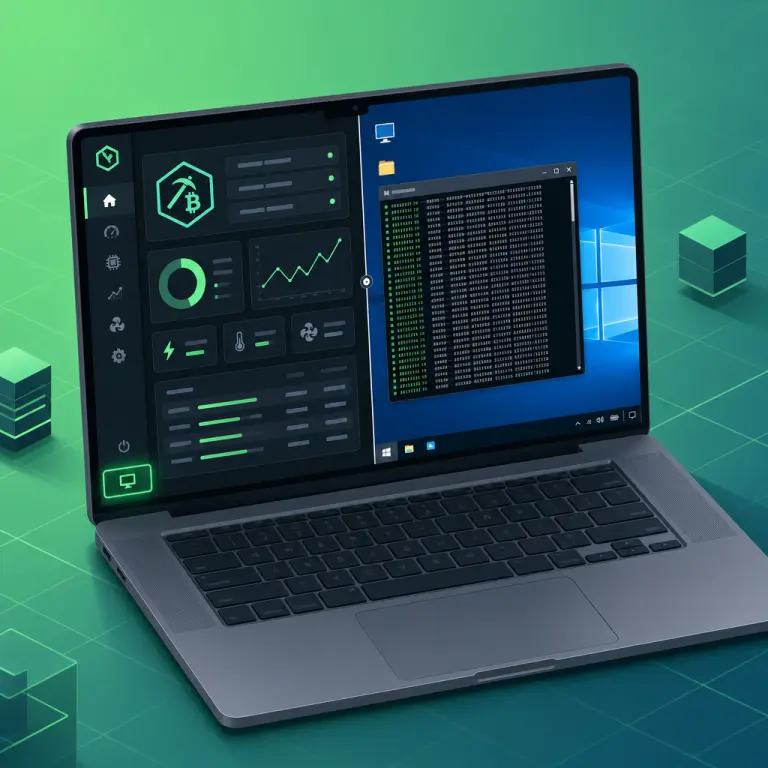
NoxHash View Desktop opens a live browser window into the real Windows Server session running your rented miner in our Kazakhstan data center. Sign in, open My Machines, and click View Desktop on any running miner — including the free 2-day trial — to watch CPU, GPU, RAM, and the CGMiner terminal in real time.
What Is NoxHash View Desktop?
View Desktop is a browser-based remote access feature that connects you directly to the Windows Server session of the miner you rented. It is not a screenshot, not a recording, and not a mock-up. When you click the button on a running miner, NoxHash streams the live desktop of that physical machine in our data center to your browser tab — mouse cursor, running processes, and the CGMiner terminal scrolling its actual output.
Most cloud mining platforms only expose a hashrate number on a chart. NoxHash goes further: you can see the hardware doing the work. That transparency is the whole point of the feature — it removes the leap of faith that usually comes with renting hashrate you cannot physically touch.
Live desktop stream
A real-time feed of the Windows Server session. You see the cursor move, windows open, and the terminal scroll as CGMiner submits shares to the pool.
Real hardware stats
Windows Task Manager shows the actual CPU, GPU, RAM, and disk of the physical machine — not simulated values generated by a web app.
CGMiner terminal
A scrolling console of accepted shares, hashrate, temperature, and pool messages. This is the same output a hobbyist sees on their own ASIC at home.
Why NoxHash Built It — Transparency as a Trust Signal
Cloud mining has a trust problem. Because users never see the hardware, a dishonest operator could pay returns out of new deposits instead of actual block rewards — and nobody would know until the payouts stopped. View Desktop is our answer to that skepticism. If you can watch the terminal of the physical machine you are renting, the hashrate on your dashboard is not a number someone typed into a database — it is the hardware working.
There is a second reason the feature exists: operator pride. NoxHash runs a fleet built on Antminer S21 series and WhatsMiner M60/M66 series — ASICs with energy efficiency between 12 and 18.5 J/TH, which is roughly twice as efficient as the 2021-era machines most hobbyists still own. Each machine runs a stripped-down Windows Server image with unnecessary services removed so every cycle goes to mining. We want you to see that tuning for yourself rather than take our word for it.
- Proof of real hardware — ruling out simulated hashrate is the single most valuable thing a cloud miner can offer.
- Visibility into health — you can spot if the terminal freezes, the machine reboots, or a pool connection drops, instead of waiting for a support reply.
- Learning surface — newer miners can read actual CGMiner output, understand share acceptance, and see what a tuned mining OS looks like.
How to Open View Desktop in 4 Steps
The flow is short — no installs, no extra passwords, no RDP client. Everything happens inside the same browser tab you use for the rest of NoxHash.
Sign in to your NoxHash account
Use email and password, or Continue with Google. Email verification is required — the same requirement that gates the free trial and the marketplace. If you do not have an account yet, signup takes under two minutes and unlocks a free Basic Miner you can use to test View Desktop.
Open the Machines page
In the top navigation, click Machines (sometimes labelled My Machines). You will see a card for every miner attached to your account, each with a tier badge (Basic, Standard, Pro, or Enterprise), hashrate, power draw, status, and the days remaining on the rental.
Pick a miner that is currently Running
The status badge must be green and say Running. If the miner is Stopped or Expired, press the Start button first (or renew the plan) — a machine that is not actively mining will not have a desktop session to stream. Trial miners work here exactly like paid ones.
Click "View Desktop"
The button sits next to Start/Stop on each machine card. Clicking it opens a full-screen browser view of the Windows Server session for that specific miner. The first frame lands in a second or two, and from that point you are interacting with a real machine in Kazakhstan.
What You Actually See on the Desktop
The first thing most people notice is how boring the desktop looks — and that is by design. A mining OS should be boring. Every cycle spent on wallpaper animations, cloud sync, or background telemetry is a cycle not spent submitting shares. Here is what you will find on a typical NoxHash miner.
| What you see | On a NoxHash miner | On a stock Windows Server |
|---|---|---|
| Background apps | Stripped — CGMiner + watchdog only | Store, Cortana, OneDrive, Xbox, Print Spooler |
| Defender real-time scan | Disabled for mining efficiency | Constant background scanning |
| Windows Update | Off — no surprise reboots | Auto-download, auto-restart |
| Task Manager stats | Real CPU / GPU / RAM / disk of the ASIC's host | Same — but noisier due to background apps |
| CGMiner terminal | Running in the foreground, auto-restart if it crashes | Not present |
| File manager | Available — you can browse CGMiner logs | Available |
In practice, a running NoxHash miner presents you with a near-empty desktop, a taskbar, and one big terminal window. That terminal is the most interesting part of the whole view — and the next section is a plain-language guide to reading it.
See View Desktop on a real miner — start with the free trial
You just read the 4 steps and the desktop breakdown. The fastest way to test them is the free 2-day Basic Miner — no deposit, no card, full View Desktop access from minute one.

Reading the CGMiner Terminal — A Plain-Language Guide
The terminal looks intimidating the first time, but you only need to watch four things. If these four look healthy, your miner is doing its job — the rest is noise.
1. Live hashrate (TH/s)
Look for a line with your tier's hashrate — 50 TH/s for Basic, 150 for Standard, 350 for Pro, 1,000 for Enterprise. Small fluctuations (a few percent) are normal; a collapse to zero for more than a minute is not.
2. Accepted shares
Each accepted line is a valid piece of work the miner sent to the pool. The counter should tick upward steadily. A rising Accepted count is the clearest proof that your hardware is earning — not a graph someone drew.
3. Rejected / stale shares
A small percentage (well under 1%) of rejects or stales is normal on any miner. Anything larger for long stretches is a network or pool glitch — our 24/7 team usually spots and fixes it before you do.
4. Pool connection status
Look for Pool 0: alive or a similar line. NoxHash connects to large FPPS pools with a dual-pool failover, so if one pool drops the miner reconnects in seconds — you will see it in the log.
If you want a mental shortcut: hashrate holding near its target, Accepted counter rising, Rejected counter barely moving, and Pool alive. That is a healthy miner. Everything else is detail.
Five Good Reasons to Open View Desktop
Most users open View Desktop out of curiosity the first time, then return for specific reasons. These are the five most common ones we see:
- Verify that the hashrate is real. If the dashboard says 350 TH/s and the CGMiner terminal confirms it, that is as close to first-hand evidence as a cloud mining user can get.
- Check hardware health during a market dip. When BTC price falls, users understandably want to confirm the miner is still running at full speed. A 30-second desktop peek settles the question.
- Learn how a tuned mining OS looks. Many NoxHash users are new to mining. Seeing a real Windows Server with no unnecessary services is genuinely educational — and takes the mystery out of the industry.
- Spot-check before scaling up. Before moving from a Basic tier to Standard or Pro, users often open View Desktop on the current miner to confirm everything is stable and to understand what they are buying more of.
- Satisfy due-diligence for anyone you recommend. If you are telling a friend about NoxHash, being able to show them a live CGMiner terminal beats any marketing page.
Frequently Asked Questions
Do I need an RDP client or extra software to open View Desktop?
No. View Desktop runs inside your normal browser tab — Chrome, Safari, Firefox, or Edge all work. There is no RDP client to install, no extra password to manage, and no VPN to configure. If you can sign in to NoxHash, you can open the remote desktop of any running miner on your account.
Does View Desktop work on the free 2-day trial miner?
Yes. The 48-hour trial runs on the same hardware and the same Windows Server image as paid miners, so View Desktop behaves identically. For most first-time users, opening View Desktop on the trial miner is the fastest way to confirm for themselves that NoxHash is operating real hardware.
Can I break the miner by clicking around in the remote desktop?
In practical terms, no. A watchdog process monitors CGMiner and relaunches it automatically if it exits, and NoxHash can roll the session back to its baseline if needed. You can safely look at Task Manager, open the file manager, and inspect logs — the machine is hardened against casual misconfiguration.
Why does the desktop look so empty compared to my home PC?
Intentionally. Each miner runs a stripped-down Windows Server — the Microsoft Store, Cortana, OneDrive, Xbox services, Print Spooler, search indexing, and real-time Defender scanning are all disabled. Every freed CPU cycle and megabyte of RAM goes to CGMiner, which is why the image is a mining OS, not a workstation.
Will my mining earnings pause while I have the desktop open?
No. Opening the remote desktop does not interrupt mining — CGMiner keeps hashing and submitting shares exactly as before. The stream is read-mostly overhead: you are watching the session, not taking over it. Earnings accrue on the same one-minute cadence whether the viewer is open or closed.
What should I do if View Desktop will not connect?
Check three things in order: the miner status is Running (not Stopped or Expired), your browser tab is not blocking a WebSocket connection, and you are on a stable network. If all three are fine and the viewer still stalls, restart the miner from the card and retry — if the issue persists, contact NoxHash support.
Not financial advice
View Desktop proves that real hardware is running, but it does not change the economics of mining. Bitcoin earnings depend on BTC price, network difficulty, and market conditions, all of which can change quickly. Past results do not guarantee future performance. Only commit funds you can afford to lose, and consider a local tax advisor for questions about crypto earnings in your country.