What You Can See on Your Miner's Desktop — A Visual Tour
A visual walkthrough of every element on your NoxHash miner's remote Windows Server desktop — CGMiner terminal, Task Manager, file system, and more.
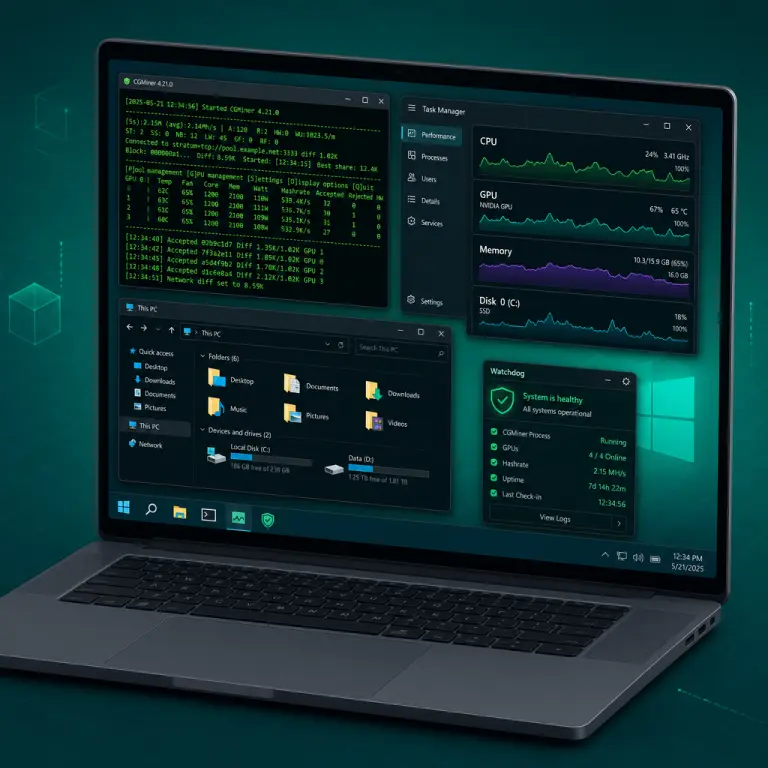
Your NoxHash miner's desktop is a live Windows Server session streamed to your browser — a stripped-down mining OS with just a scrolling CGMiner terminal, Task Manager, a file explorer, and a watchdog monitor. This visual tour walks through every element you will see, what each one means, and how to read it confidently.
What Kind of Desktop Is This, Exactly?
The desktop you land on is a real Windows Server session running on the physical ASIC host for your rented miner in our Kazakhstan data center. It is not a rendered mock-up, not a screenshot, and not a replay. The cursor moves when you move your mouse, the CGMiner terminal scrolls new lines in real time, and Task Manager reports the actual hardware underneath.
What it is not is a workstation. NoxHash strips each image down to the bare minimum a mining machine needs: the Microsoft Store, Cortana, OneDrive, Xbox services, Print Spooler, search indexing, and real-time Defender scanning are all removed or disabled. Telemetry and Windows Update are turned off. Every spare CPU cycle and megabyte of RAM is handed to CGMiner, which is why the taskbar looks almost empty.
Mining-first OS
A Windows Server image tuned for one job — running CGMiner around the clock with no background noise stealing cycles.
Real file system
You can open File Explorer and browse the drive — including the folders where CGMiner stores its configuration and rolling log files.
Watchdog-protected
A watchdog process keeps CGMiner alive. If it crashes, it relaunches automatically — usually before your next share would have been submitted.
Element 1 — The CGMiner Terminal (The Main Event)
The single most important window on the desktop is the CGMiner terminal. It takes up most of the foreground on most of our miners, and it is the one element that proves, line by line, that your hashrate is real. CGMiner is the long-standing open-source ASIC mining client — its behaviour is documented on the Bitcoin Wiki CGMiner page — and what you see here matches what a hobbyist would see on their own ASIC at home.
On a healthy NoxHash miner, the terminal scrolls steadily. New lines appear every few seconds as the machine submits work to the pool. You do not need to understand every column — just the four signals below are enough to confirm the miner is earning.
Hashrate (TH/s)
The headline number — 50 TH/s for Basic, 150 for Standard, 350 for Pro, 1,000 for Enterprise. Small fluctuations are normal; a collapse to zero lasting more than a minute is not.
Accepted shares
Lines tagged accepted are valid work the miner sent to the pool. The counter should tick up steadily — this is the clearest proof your hardware is earning, not a number someone typed into a database.
Rejected & stale
A tiny fraction of rejects and stales (well under 1%) is normal on any miner — network jitter is a fact of life. Sustained spikes above that usually indicate a pool hiccup our team spots quickly.
Worker, pool URL & temp
Header lines show the worker ID assigned to your miner, the FPPS pool URL it is connected to, and the current ASIC temperature. Pool 0: alive is the signal you want to see.
A mental shortcut to keep in your pocket: hashrate near target, Accepted rising, Rejected barely moving, Pool alive. That is a healthy miner — everything else is detail.
Element 2 — Task Manager (Proof of Real Hardware)
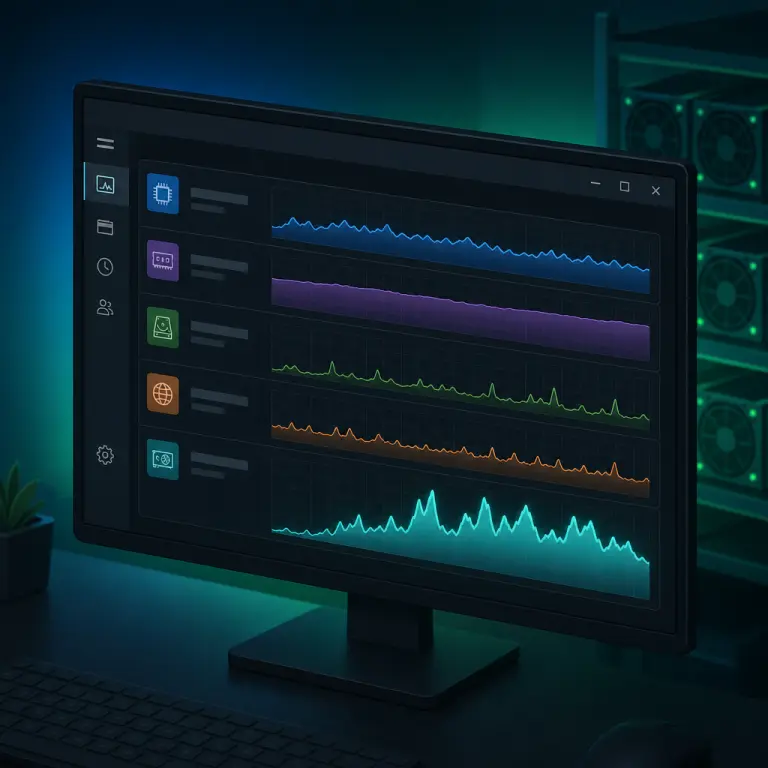
Open Task Manager from the taskbar and you step from the mining-specific world into plain Windows. The Performance tab reports the real CPU, GPU, RAM, disk, and network of the physical ASIC host — not values generated by a web app. This matters because a dishonest cloud miner could fake a dashboard chart, but faking a full Windows performance panel behind a streaming session is a different class of problem entirely.
| Task Manager panel | What it shows on your miner | Why it matters |
|---|---|---|
| CPU graph | Low steady load (CGMiner is GPU/ASIC-bound) | Confirms a real CPU exists and is idle-healthy |
| GPU / mining engine | High sustained utilisation | Where the SHA-256 work actually happens |
| Memory | Modest, stable usage | Mining is compute-heavy, not RAM-heavy |
| Disk | Low I/O — only log writes | Nothing else is touching the disk |
| Ethernet | Steady small uploads to pool | Each share submission is a tiny packet |
| Processes list | CGMiner + watchdog + Windows essentials | No bloat, no surprise background apps |
The first time users open the Processes tab, they often expect to see a wall of unknown programs. On a NoxHash miner the list is strikingly short — that minimalism is exactly why the hardware keeps so close to its rated hashrate.
Element 3 — File Manager (Your Log & Config Viewer)
File Explorer is available exactly like it is on any Windows machine. Most users never need to use it — the dashboard already aggregates everything you care about — but it is useful when you want to look at raw CGMiner logs or verify a configuration file with your own eyes.
- CGMiner install folder — contains the miner executable and its config file, which points to the FPPS pool and names the worker.
- Rolling log files — timestamped text files you can open in Notepad. Great if you want to study share acceptance over a longer window than the live terminal shows.
- Watchdog script — a small helper that checks CGMiner is alive and relaunches it if it exits. Reading its source is a quick way to understand how auto-recovery works.
- Standard Windows folders — Users, System32, ProgramData, all present. Nothing hidden, nothing replaced by a fake.
Think of the file system as the receipt drawer for your miner — most of the time you ignore it, but when you want to audit something, it is right there.
Elements 4 & 5 — IP Config and the Watchdog Monitor
Two smaller but important widgets round out the picture: the network configuration utility and the watchdog monitor. Neither demands attention on a daily basis, but knowing what they are removes two more unknowns from the desktop.
IP config — the network link
Running ipconfig in a command prompt (or opening Network & Internet settings) shows the miner's private IP on our data center network. NoxHash runs redundant dual-ISP fibre with automatic failover, so a blip on one carrier does not cut your miner off from its pool.
Watchdog monitor — the safety net
A small window or tray icon shows the state of the auto-recovery watchdog. If CGMiner exits for any reason, the watchdog launches it again in seconds. This is why users almost never see an unexplained gap in their Accepted-share counter — downtime gets caught before it becomes visible.
See every element in this tour on your own miner
You just read what the CGMiner terminal, Task Manager, file system, IP config, and watchdog look like. The fastest way to verify it is the free 2-day Basic Miner — no deposit, no card, full desktop access from minute one.

A Quick Read — Healthy vs Worth Investigating
Once you know the elements, the desktop becomes a quick health check you can do in thirty seconds. The table below pairs the signals you want to see against the ones worth flagging to NoxHash support.
| Signal | Healthy | Investigate |
|---|---|---|
| Hashrate in terminal | Within a few % of tier target | Flat at zero for > 60 seconds |
| Accepted counter | Rising steadily | Stuck for minutes at a time |
| Reject/stale rate | Well under 1% | Several percent sustained |
| Pool status line | Pool 0: alive | Repeated reconnects |
| ASIC temperature | Steady within rated range | Climbing over hours |
| Task Manager — GPU | High sustained utilisation | Drops to near zero |
In practice, the 24/7 operations team usually spots any of the right-hand-column patterns before a user does — the hashrate monitoring layer is far more sensitive than a human glance. The desktop view is there so you can verify rather than trust blindly.
Frequently Asked Questions
Is the miner desktop a live stream or a pre-recorded video?
It is live. Your cursor moves the real cursor on the Windows Server session, the CGMiner terminal scrolls in real time, and Task Manager reports the current state of the physical hardware. If it were a recording, none of those would respond to your input — the interactivity is the easiest way to confirm for yourself.
Why is the desktop so empty compared to my home PC?
By design. Microsoft Store, Cortana, OneDrive, Xbox services, Print Spooler, search indexing, and real-time Defender scanning are all disabled, and telemetry plus Windows Update are turned off. Every freed CPU cycle and megabyte of RAM goes to CGMiner — a mining OS should look boring.
Can I install my own software on the miner?
No. The image is locked to its tuned configuration and the watchdog resets anything that interferes with CGMiner. You can read files and watch the terminal freely, but the desktop is not a general-purpose VPS — adding software would eat the cycles that are paying for your hashrate.
Does opening the desktop slow my mining down?
No. CGMiner keeps hashing and submitting shares while you watch — the stream is read-mostly overhead. Earnings accrue on the same one-minute cadence whether the viewer is open or closed, so you can leave the tab running as long as you like without any impact on output.
What should I do if the CGMiner terminal looks stuck?
First, wait a minute — a momentarily paused screen is usually a browser redraw, not a stopped miner. If the Accepted counter truly stops for several minutes, the watchdog normally relaunches CGMiner automatically. If it does not, restart the miner from the dashboard card, and contact NoxHash support if the issue persists.
Can I use this tour on the free trial miner?
Yes. The 48-hour Basic trial runs the same Windows Server image on the same class of hardware as paid miners, so every element in this tour is visible. For most first-time users, opening the desktop on the trial is the single best way to understand what cloud mining really looks like.
Not financial advice
This tour shows that real hardware is running, but it does not change the economics of mining. Bitcoin earnings depend on BTC price, network difficulty, and market conditions, all of which can change quickly. Past results do not guarantee future performance. Only commit funds you can afford to lose, and consider a local tax advisor for questions about crypto earnings in your country.