How to Use the NoxHash Mining Dashboard — A Complete Walkthrough
A widget-by-widget tour of the NoxHash mining dashboard in 2026 — BTC balance, hashrate, 30-day earnings chart, crypto prices and recent transactions.
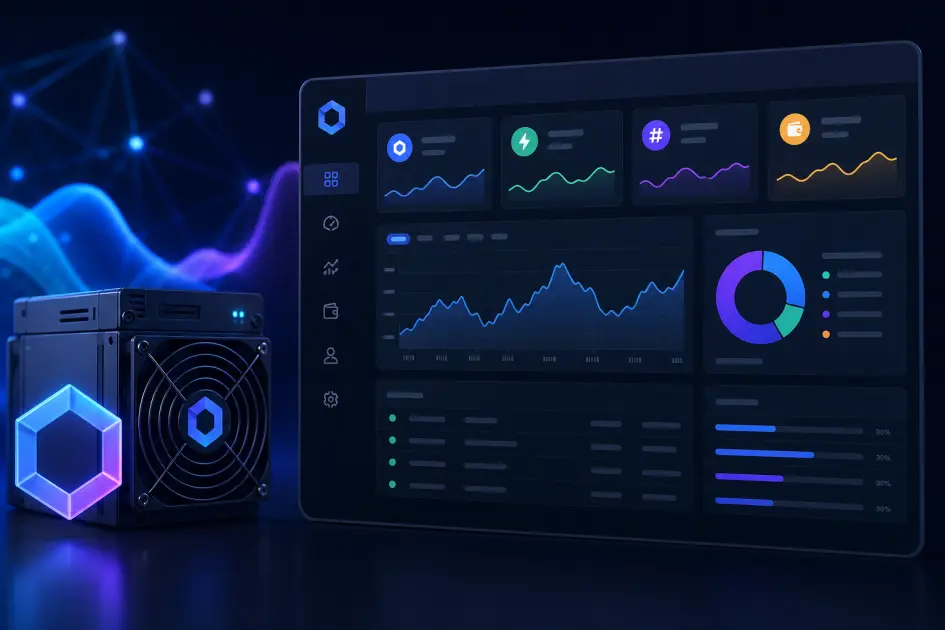
The NoxHash mining dashboard is your mission control — one screen that shows your BTC balance, running miners, total hashrate, today's earnings, and a 30-day chart. Every widget is built around a question you'll ask daily: am I mining, how much did I earn, what should I do next? This walkthrough reads the dashboard in the order a new user naturally looks at it.

The Anatomy of Your NoxHash Dashboard
When you land on the dashboard after signing in, you're looking at a single page packed with nine widgets. They fall into four logical groups — wallet, fleet, earnings, and market context — and once you know which group each card belongs to, the layout stops feeling busy and starts feeling useful.
The top row is about money in your account today: BTC balance with a USD equivalent. The next row is about your mining fleet: running miners, total miners, stopped miners, and total hashrate. Below that sits the earnings block — today's BTC, all-time BTC mined, and a 30-day bar chart that tells you whether your output is trending up or down. A side column holds market context (live crypto prices) and recent activity (your last 8 transactions). If any of your miners are running, a thin affiliate banner appears at the bottom as a shortcut to the referral page — just another dashboard widget, nothing you have to click.
Wallet
BTC balance with USD equivalent. The number you'll look at first.
Fleet
Running, total, stopped counts plus combined hashrate in TH/s.
Earnings
Today's BTC, all-time BTC, and a 30-day bar chart in BTC + USD.
Market & activity
Live prices for 6 coins and your last 8 transactions in one glance.
The Wallet Block — Read Your BTC Balance Correctly
The largest card on the dashboard is your BTC balance, usually shown to 8 decimal places (1 satoshi precision) with a smaller USD equivalent beneath it. The USD figure is calculated from a live Bitcoin price pulled from a market data provider, which is why it can tick up or down even when your miners are stopped.
Two things this card enables directly: the Deposit button (top up USDT via TRC-20 or BEP-20 to rent more machines) and the Withdraw button (send BTC to a Segwit, P2PKH or P2SH address, with a 1.5% fee and 0.00001 BTC minimum). A useful habit on day one is to check the USD figure, then glance at the BTC number — if USD dropped while BTC stayed flat, the market moved, not your mining.
How to read the wallet card
- BTC (primary): the exact satoshi amount credited to your account, accrued every minute from running miners.
- USD (secondary): a live conversion — moves with market price, not with your miners.
- Action: Deposit fills USDT, Withdraw sends BTC out (1.5% fee).
The Fleet Block — Three Counts and a Total Hashrate
The fleet block is three small number tiles plus a hashrate card. Together they answer one question: is my rented capacity actually working right now?
Running machines
The count of miners currently in the Running state — green status badge, actively accruing BTC. If this is zero, your dashboard is frozen in terms of earnings. Click through to My Machines to start any stopped miners.
Total machines
Every miner on your account — running, stopped, or expired. Use this as the denominator: if total is 3 but running is 1, two thirds of your paid capacity is idle.
Stopped machines
Miners you paused manually or that expired. Stopped is not the same as broken — you can restart a paused miner any time, while expired miners need a renewal from the Marketplace.
Total hashrate (TH/s)
The sum of every running miner's hashrate. A Basic tier adds 50 TH/s, Standard adds 150, Pro adds 350, Enterprise adds 1,000. If you rent one Pro and one Standard, this card reads 500 TH/s.
The Earnings Block — Today, All-Time, and the 30-Day Chart
Earnings are where dashboards either click or confuse. NoxHash splits them into three complementary cards so you can answer very different questions without doing mental math.
| Card | What it shows | Question it answers |
|---|---|---|
| Today's BTC | BTC earned since 00:00 UTC | Am I on track for a normal day? |
| All-time BTC mined | Lifetime total + USD equivalent | How far have I come since I started? |
| 30-day bar chart | Daily BTC earnings (BTC + USD) | Is my output trending up or down? |
A practical way to read the chart: hover or tap any bar to see the exact BTC and USD for that day. If the last five bars are shorter than the previous five, something has changed — usually network difficulty, BTC price, or one of your miners slipping into a stopped state. Cross-check with the Running machines tile before assuming anything is broken.
See these widgets with your own numbers
You've just toured the wallet, fleet, and earnings blocks. The fastest way to make the walkthrough stick is to open the dashboard with a free account and watch your own BTC figure tick up minute by minute.

Market Context and Recent Activity — The Side Column
Down the right side of the dashboard sits the context column. It doesn't change your earnings directly, but it saves you from opening a second tab when you're making decisions.
Crypto price table
Live prices for BTC, ETH, USDT, BNB, SOL, and LTC. Useful for judging deposit timing (USDT is a stablecoin, so 1 unit should read ~$1) and spotting BTC moves before you check earnings.
Last 8 transactions
Your most recent deposits, withdrawals, miner rentals, and payouts. Each row shows type, amount, status, and timestamp. A 2-second sanity check after any action you just performed.
The crypto price table matters most on deposit day. If USDT shows anything other than roughly $1, something unusual is happening with the stablecoin market and your deposit will still be credited in stable terms — that's why NoxHash denominates deposits in USDT and payouts in BTC. For every other widget you'll look at BTC price: the USD figures across your dashboard are driven by whatever number shows up in this table.
Your First-Day Reading Order — How to Scan the Dashboard in 60 Seconds
With all widgets explained, the final question is order. Here is the scan most experienced users fall into naturally; it'll save you minutes every session once it becomes a habit.
- Wallet card. BTC first, USD second. Did the number grow since yesterday? If yes, your miners did their job overnight.
- Running machines tile. Should match your Total machines tile. If it doesn't, jump to My Machines before you do anything else.
- Total hashrate. A quick sanity check — does the TH/s add up to the tiers you rent? 50 + 150 = 200 TH/s, and so on.
- Today's BTC. A rough daily pulse. Compare against the average bar height on the 30-day chart.
- 30-day bar chart. Scan the shape, not the individual bars. Flat, rising, or falling?
- Crypto price table. Glance at BTC — big move? Earnings in USD will reflect it.
- Last 8 transactions. Confirm that yesterday's payout hit, or your most recent deposit landed.
Once this scan becomes second nature, the dashboard stops being a page of numbers and starts being a one-minute status report. Every widget has earned its place because it answers a specific question — and every question points you to an action somewhere else in NoxHash (Marketplace, My Machines, Profile, Wallet).
Frequently Asked Questions
How often does the NoxHash dashboard update?
Earnings accrue and refresh on your dashboard roughly every minute, which is how often the mining pool settles payouts into your account. Crypto prices and your USD equivalents also update continuously throughout the day. Refresh the page at any time to pull the latest BTC balance and chart data.
Why is my BTC balance growing but the USD value dropping?
Because BTC and USD are two different measurements. The BTC figure grows as miners accrue satoshis. The USD figure is that BTC number multiplied by the live Bitcoin price — so if BTC price falls faster than your satoshis grow, the USD equivalent can dip even while you are still earning.
What counts as a "running" miner in the fleet counts?
A miner is counted as running when its status badge is green on the My Machines page — meaning the rental is active, not expired, and you have not manually stopped it. Stopped miners and expired miners sit in their own counters so you can always tell idle capacity apart from paid capacity.
Can I export the 30-day earnings chart data?
The chart is read-only inside the dashboard, but every earning is logged as a transaction in your history. Open the full transaction list from the recent-activity widget and use the filters there to narrow by date range — that is the cleanest way to pull daily or monthly totals for personal bookkeeping.
Does the dashboard look the same on mobile as on desktop?
The same widgets are present on both, but mobile stacks them vertically so you scroll instead of scan. The reading order stays identical: wallet, fleet, earnings, market, and activity. Dark mode is supported on both screen sizes and follows whatever theme you select in the top-right of the navigation.
Not financial advice
This guide explains how to read the dashboard, not whether to invest. Your BTC balance and USD equivalents move with Bitcoin price, network difficulty, and market conditions — all of which can change quickly and unpredictably. Past results do not guarantee future performance. Only commit funds you can afford to lose, and speak to a local tax advisor about crypto earnings in your country.