How to Start and Stop Your NoxHash Mining Machines
Learn where the Start and Stop buttons live on NoxHash, what happens when you click each, and when pausing a mining machine actually makes sense in 2026.
Every miner on your NoxHash My Machines page has a Start button, a Stop button, and a View Desktop button. Stopping pauses BTC accrual; starting resumes it within the next one-minute tick. Important caveat: stopping does not pause your rental clock and does not refund unused days — the countdown keeps running regardless.
Where the Start, Stop, and View Desktop Buttons Live
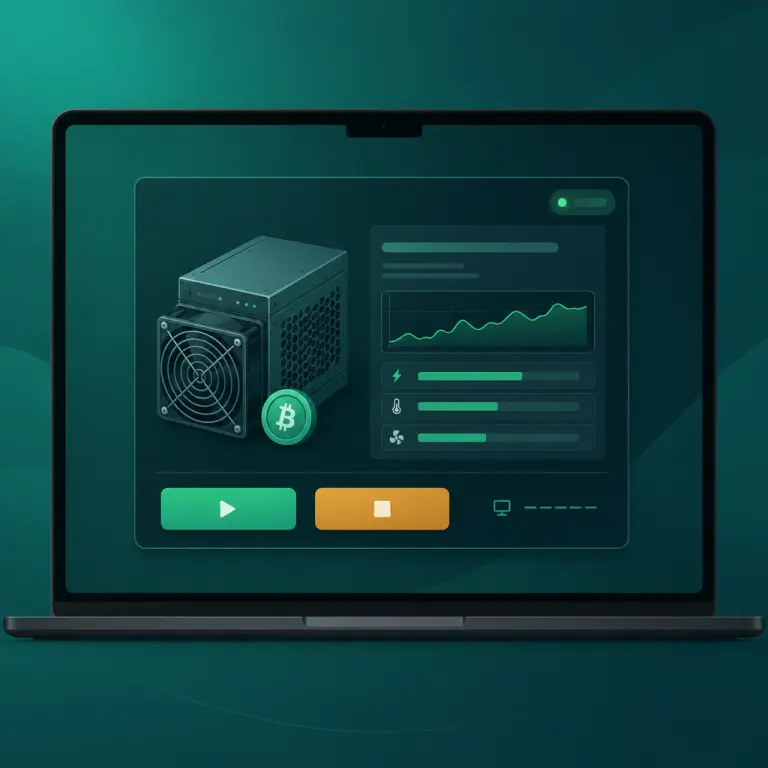
Every rented miner — trial or paid — shows up as a card on the My Machines page. Each card carries the machine name, tier badge, live hashrate, power draw, rental countdown, BTC mined, and three controls at the bottom: Start, Stop, and View Desktop. The buttons are identical across all four tiers (Basic, Standard, Pro, Enterprise) and across trial miners — NoxHash ships one control surface for everything.
Which button is actively clickable depends on the miner's current status. A Running miner shows a disabled Start button and an active Stop button; a Stopped miner shows the reverse. An Expired miner dims both controls — once the rental clock hits zero, there is nothing to start.
Start button
Resumes mining on a stopped miner. Within the next one-minute accrual tick, BTC earnings begin recording again on your dashboard.
Stop button
Pauses BTC accrual. The miner's status flips to amber Stopped. The rental clock keeps counting down in the background.
View Desktop button
Opens the miner's live Windows Server session and CGMiner terminal in the browser — proof the hashrate on your dashboard is real hardware output.
Running, Stopped, Expired — The Three Machine Statuses
Every machine card carries a coloured status badge in the top-right corner. The colour tells you, at a glance, whether the miner is earning, paused, or done. These three states are the only states a NoxHash miner ever displays — there is no "paused", no "pending", no "suspended".
| Status | Running | Stopped | Expired |
|---|---|---|---|
| Badge colour | Green | Amber | Red |
| BTC accrual | Ticking every minute | Paused | Ended |
| Rental clock | Counting down | Still counting down | Reached zero |
| Start button | Disabled (already on) | Active — click to resume | Disabled — rental over |
| Stop button | Active — click to pause | Disabled (already off) | Disabled — rental over |
| What to do next | Let it mine | Click Start or accept lost time | Renew or rent a new miner |
A practical read-on-sight rule: green means earning, amber means idle-on-your-dime, red means gone. If you see amber on any paid miner, every minute you leave it that way is a minute of paid rental producing zero BTC.
What Happens When You Click Start or Stop
NoxHash pays BTC into your wallet on a per-minute accrual tick — the same engine described in the dashboard overview. Start and Stop operate on that engine. Here is exactly what changes, and how fast.
You click Stop
The card's status badge flips from green Running to amber Stopped. The accrual engine reads that flag on its next tick (at most ~60 seconds later) and skips your machine — no BTC is credited for that minute or any subsequent minute while the miner is stopped.
The rental clock keeps ticking
The days remaining counter on the card continues to decrease every hour, whether the miner is Running or Stopped. A 30-day rental you stop on day 1 and resume on day 10 gives you 20 usable days, not 29. This is the most important fact on the page.
You click Start
The badge flips back to green Running. The accrual engine picks your machine back up on its next one-minute tick and begins crediting BTC again. Expect the first post-resume BTC increment to appear on your dashboard within about 60 seconds — sometimes sooner.
No refund, no catch-up
Time spent Stopped is never reimbursed and never "made up" — there is no catch-up mining when you resume. Missed minutes are simply missed. Trial miners are especially sensitive: the 48-hour trial clock keeps running too, so stopping your trial to "save hours for later" does not work.
When It Actually Makes Sense to Stop a Miner
Given that Stop does not pause billing, the useful reasons to press it are narrow. In practice, we see three: quick maintenance, deliberate rest, and learning the UI. Outside those, leaving a miner Running is almost always the right call.
Brief ops maintenance you initiate
If you want to safely restart the miner, reconnect View Desktop, or clear a hung CGMiner session, stopping for a minute and starting again is the clean way to do it. Accrual loss is trivial over a few minutes.
Deliberate testing of the control
First-time users often want to verify that Stop does what it says and Start recovers cleanly. That's a legitimate 60-second experiment — especially on the free 2-day trial, where no real funds are at stake.
Personal preference, eyes open
Some users simply prefer "everything off" when they're travelling or stepping away. That is valid — as long as you accept the trade-off. You're choosing the feel of a quiet dashboard over the BTC those minutes would have produced.
Routine double-check of transparency
Pressing Stop, watching the accrual halt within a minute, then pressing Start and watching it resume is one of the cleanest proofs that the hashrate you see is real and directly under your control.
When Stopping Does Not Help — Three Common Myths
The reasons people usually reach for the Stop button are, unfortunately, exactly the reasons it does not help them. Because the rental clock runs independently of miner state, none of the following goals are actually served by stopping a machine.
- "I'll stop it to save on the rental." There is nothing to save — you already paid the full rental amount up-front when you rented the miner. Stopping cuts your BTC income, not your cost.
- "I'll stop it while I'm away to extend the rental." The rental clock does not pause. A 30-day rental ends exactly 30 calendar days after purchase no matter how many times you press Stop.
-
"I'll stop my trial to use the 48 hours over several weekends." The trial's
expires_attimestamp is a wall-clock deadline. Trial miners auto-expire 48 hours after activation regardless of Start/Stop state.
The practical conclusion: if your miner is healthy and the rental is still running, leaving it in Running state is almost always correct. Stop is a maintenance and preference tool, not a cost-saving or rental-extension tool.
See Start and Stop in action on a real miner
Reading about the three statuses is one thing; watching Running flip to Stopped and BTC accrual halt within a minute is another. The free 2-day trial gives you a real Basic Miner to practice on — no deposit, no card.

Which Button Should I Press Right Now?
When in doubt, use this short decision list. It covers the decisions that account for the vast majority of Start/Stop situations we see in the wild.
- Badge is green and everything looks normal? Don't press anything. The miner is earning.
- Badge is amber on a paid miner you meant to leave running? Press Start immediately — every minute of amber is lost BTC.
- Dashboard numbers look frozen or CGMiner looks hung? Open View Desktop first to check. If it really is stuck, press Stop, wait a minute, then press Start.
- Badge is red? The rental is over. Start/Stop won't do anything. Visit the Marketplace if you'd like to renew or rent a different tier.
- You simply prefer everything idle for a while? Press Stop, but remember the rental clock still runs — set a reminder to press Start when you're back.
Frequently Asked Questions
Does stopping a miner pause my rental period?
No. The rental clock is a fixed wall-clock timer that begins the moment you confirm your rental and ends on the scheduled expiry date. Pressing Stop only pauses BTC accrual — it does not pause or extend the rental. A miner stopped for 5 days loses 5 days of earnings, not rental time.
How long does it take for Start or Stop to take effect?
NoxHash credits BTC on a per-minute accrual tick, so both Start and Stop take effect within about 60 seconds. After clicking Stop, the next tick will skip your machine. After clicking Start, the next tick will credit BTC again. You should see the counter update on your dashboard within a minute.
Can I stop my free 2-day trial to save the hours for later?
No. The trial's expiry timestamp is set 48 hours after activation and does not pause when you press Stop. You can press Stop and Start during the trial without penalty, but the 48-hour wall-clock deadline runs regardless. Plan to activate your trial on a day you can actually watch the dashboard.
What does the red Expired status mean and can I restart from there?
Red Expired means the rental period has ended. Both Start and Stop are disabled on the card — there is nothing to resume. The machine stays listed as a historical record, but you cannot bring it back. To continue mining, rent a fresh miner from the Marketplace at the tier and duration you prefer.
Is it safe to use Stop and Start repeatedly?
Yes. Toggling Stop and Start does not damage hardware or reset your BTC balance — the underlying Antminer and WhatsMiner fleet runs under our operations team in Kazakhstan, not from a fragile consumer connection. The only consequence is lost accrual during the time the miner is Stopped.
What should I do if the status does not update after I click a button?
Refresh the My Machines page after about a minute — the accrual engine reports status on its next tick. If the badge still hasn't updated, check your connection, then try clicking again. If the problem persists beyond a few minutes, contact NoxHash support from your dashboard so the ops team can check the machine directly.
Not financial advice
This guide explains the Start and Stop controls only. Renting a miner is an investment in a volatile asset — Bitcoin earnings depend on BTC price, network difficulty, and market conditions, all of which can change quickly. Past results do not guarantee future performance. Only commit funds you can afford to lose, and consider a local tax advisor for questions about crypto earnings in your country.