How to Enable Two-Factor Authentication (2FA) on NoxHash
Step-by-step guide to enabling two-factor authentication on NoxHash. Scan a QR code, verify a 6-digit code, and save 8 recovery codes in under 3 minutes.
Two-factor authentication (2FA) on NoxHash adds a second verification layer to your mining account — so a stolen password alone can't drain your BTC wallet. Setup takes under three minutes: open your profile, scan a QR code with Google Authenticator or Authy, confirm a six-digit code, and store the eight single-use recovery codes you'll receive.
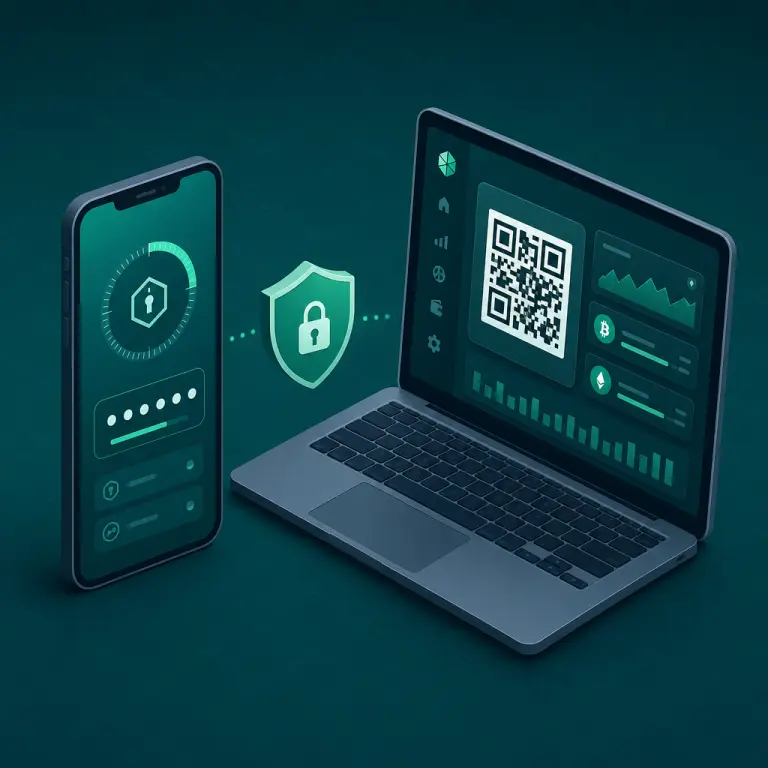
What 2FA Does for Your Mining Account
2FA means that logging in requires two independent factors: something you know (your password) and something you have (a time-based 6-digit code from an app on your phone). If a phishing site or data breach exposes your password, attackers still can't reach your account — they'd need physical access to your phone too. According to CISA's multi-factor authentication guidance, enabling MFA blocks more than 99% of automated account-takeover attempts.
For a cloud mining account, the stakes are concrete: a compromised NoxHash login lets an attacker change your BTC payout address, submit a withdrawal, or rent miners on your balance. 2FA closes that door with a feature that takes three minutes to enable and zero cost.
Second verification layer
A stolen or leaked password alone cannot sign into your account — the attacker would need the rotating 6-digit code too.
8 recovery codes
Single-use backup codes (format XXXX-XXXX) rescue your login if your phone is ever lost, stolen, or wiped.
Open TOTP standard
NoxHash uses the standard TOTP protocol (RFC 6238), so any authenticator app works — Google, Authy, 1Password, Microsoft, Bitwarden, and more.
Before You Start — Pick Your Authenticator App
Any TOTP-compatible authenticator app works with NoxHash. They all do the same thing — turn a shared secret (the QR code) into a new 6-digit code every 30 seconds. The difference is backup, sync, and convenience. Here's how the four most common options compare:
| App | Cloud backup | Multi-device sync | Best for |
|---|---|---|---|
| Google Authenticator | Optional (Google account) | Yes, via Google account | Simple, free, most widely recognized |
| Authy | Encrypted cloud | Yes, up to 5 devices | Users who want backup and desktop access |
| 1Password | Yes (vault sync) | Yes (paid) | Password manager users — one app for both |
| Microsoft Authenticator | Yes (Microsoft account) | Yes | Microsoft 365 / Outlook users |
If you don't already have one installed, Google Authenticator is the fastest pick — install it from the App Store or Google Play, and you're ready. Don't install the app inside a desktop password manager that the same attacker could compromise together with your password; keeping your codes on a separate device (usually your phone) is the point of 2FA.
Enable 2FA in 5 Steps
With your authenticator app installed, head back to NoxHash. The entire flow lives on one page and takes under three minutes. Every step below matches exactly what you'll see on screen.
Open your Profile Settings
Sign in to NoxHash, click your avatar in the top-right, and choose Profile — or go directly to noxhash.com/profile. Scroll to the Two-Factor Auth section under the Security heading. If 2FA is not active yet, you'll see a grey "Two-factor authentication is not enabled" banner.
Click "Enable 2FA"
Press the green Enable 2FA button. The page reloads into setup mode: an amber banner appears ("Scan the QR code with your authenticator app"), a QR image is displayed, and a Verify Code input sits below it. Nothing is saved to your account yet — this stays pending until you complete Step 4.
Scan the QR code with your app
Open your authenticator app and tap Add account (or the "+" icon). Choose Scan a QR code and point the camera at the NoxHash QR. A new "NoxHash" entry appears in the app, showing a fresh 6-digit code that refreshes every 30 seconds. If your camera can't read it, most apps also accept manual entry — long-press the QR image to copy the secret, or contact support to have it issued as text.
Enter the 6-digit code and click Verify
Type the current 6-digit code from the app into the Verify Code field and press the green Verify Code button. If the code is correct, NoxHash commits the setup to your account and the banner flips to green: "Two-factor authentication is enabled." If it fails, check your phone's clock is auto-synced — a drift of even 30 seconds will reject the code.
Save your 8 recovery codes
Below the QR code you'll see a grid of 8 recovery codes in the format A1B2-C3D4. Each is single-use — it works once, then is consumed. Click Copy to grab them all to your clipboard, then paste them into a password manager, an encrypted note, or print them. These are your only backup if you lose the phone with your authenticator app.
Turn those 5 steps into a locked-down account
You've seen exactly what each screen looks like and what to click. Open your Profile page in a new tab and your account will be protected by a second verification layer before your authenticator app has rotated its next code.

Storing Your Recovery Codes Safely
Recovery codes are your only fallback if your phone is lost, stolen, factory-reset, or the authenticator app data is wiped. Lose them along with your phone and you'll be locked out, with support-driven recovery as the last resort. Pick at least two of the four storage methods below — redundancy here is cheap and the cost of losing it all is high.
Password manager
Save them as a secure note attached to your NoxHash entry in 1Password, Bitwarden, Proton Pass, or similar. Encrypted, synced, and searchable.
Printed copy in a safe
Print the codes on paper and store them in a locked drawer, safe, or safety deposit box. Offline storage survives any digital compromise.
Encrypted text file
A password-protected ZIP, an encrypted disk image, or a VeraCrypt volume on a USB stick. Keep it somewhere other than your main laptop for true separation.
Trusted physical location
Hand a sealed copy to a trusted family member or lawyer — useful for inheritance planning on any high-value crypto account.
A rule to live by: never store recovery codes in the same place as your authenticator app. If you keep both on the same phone, a single device loss invalidates both factors. The whole point of 2FA is that the two factors live in two different places.
Managing 2FA After Setup
Once 2FA is on, the Two-Factor Auth section of your profile changes into a management panel. Three actions are available from there, and you rarely need any of them — but it's good to know they exist.
- Show/Hide Recovery Codes — Reveal the current 8 codes if you need to copy them again to a new backup location. Each code works once; the panel shows all 8 whether used or not.
- Regenerate Codes — Issues a fresh set of 8 codes and immediately invalidates the previous set. Use this if you suspect the old codes have been seen by anyone else, or if you've used a few and want a full set of 8 again.
- Disable 2FA — Requires your current password. Removes the shared secret and recovery codes from your account entirely, returning it to single-factor login. Only do this if you're transferring to a new authenticator app; you can re-enable immediately after.
Switching to a new phone? The cleanest path is: on the old phone, open Profile and click Disable 2FA (enter your password), then click Enable 2FA again and scan the new QR with your new phone's authenticator app. Don't transfer the QR image — generate a fresh secret each time you change devices.
Frequently Asked Questions
What happens if I lose the phone with my authenticator app?
Use one of your 8 recovery codes to sign in instead of the 6-digit code. Once inside, immediately disable 2FA, re-enable it with your new device, and store a fresh set of recovery codes. If you've lost both the phone and the codes, contact NoxHash support with your account details for manual recovery.
Do I have to use Google Authenticator specifically?
No. NoxHash uses the open TOTP standard (RFC 6238), so any authenticator app works — Authy, 1Password, Microsoft Authenticator, Bitwarden, Raivo, 2FAS, and more. Pick whichever one matches how you already manage your other accounts. The QR code format is identical across all of them.
Do recovery codes expire?
No — recovery codes never expire. Each code is single-use: once you consume it to sign in, it's gone for good. If you regenerate the set from your profile, the previous 8 codes are invalidated instantly and replaced with 8 fresh ones. Re-download and re-store them whenever you regenerate.
Can I disable 2FA later without losing my account?
Yes. Go to Profile → Two-Factor Auth, enter your current password, and click Disable 2FA. Your account, miners, BTC balance, and settings are untouched — only the extra verification layer is removed. You can re-enable 2FA immediately after, with a fresh QR code and new recovery codes.
I have a strong password — do I really need 2FA?
Strong passwords help, but they don't protect against phishing, malware, keyloggers, or data breaches on other sites where you've reused a similar password. 2FA adds a second factor that attackers can't grab remotely. For any account holding crypto or BTC earnings, the three-minute setup is one of the highest-return security moves you'll ever make.
The 6-digit code keeps being rejected — what's wrong?
Usually it's clock drift. TOTP codes depend on your phone's time matching the server's time within ~30 seconds. Enable automatic time-sync on your phone (Settings → Date & Time → Set automatically) and try again. Also check you're reading the latest code — they roll over every 30 seconds, and a code read just before the rollover may be invalid by the time you submit.
Security is layered, not guaranteed
Enabling 2FA is a strong defensive step, but no single control removes all risk. Combine it with a unique password, a trusted device, careful URL habits, and secure recovery-code storage. This guide is educational and not financial or legal advice — responsibility for account security and any related crypto earnings ultimately rests with the account holder.