How to Use Recovery Codes If You Lose Your 2FA Device
Lost your 2FA phone? Use one of your 8 NoxHash recovery codes to sign back in, then regenerate a fresh set. Full 2026 walkthrough with storage tips.
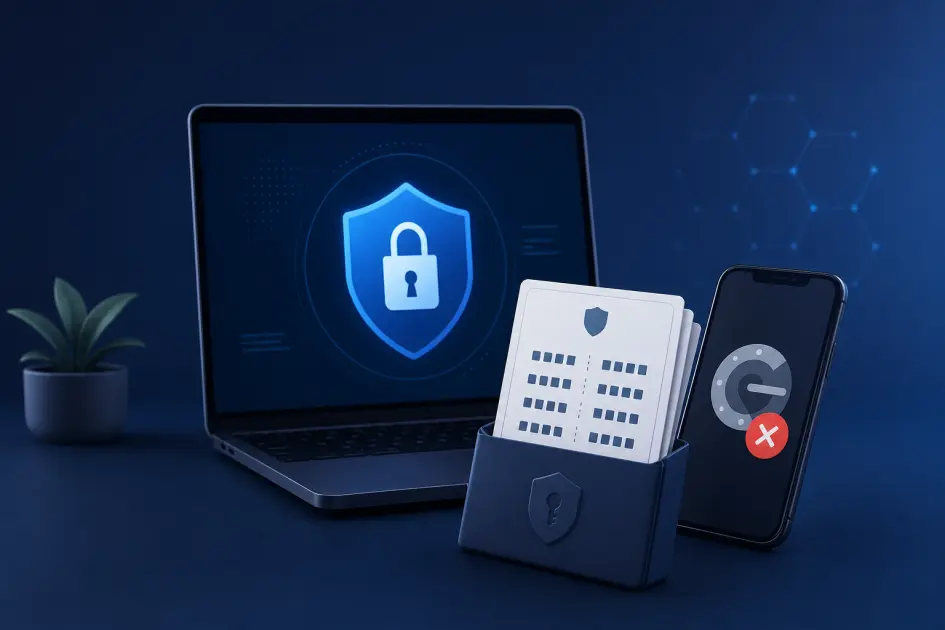
If you've lost the phone with your NoxHash authenticator app, sign in using one of your 8 single-use recovery codes instead of the 6-digit app code. On the login page, click "Use a recovery code", paste one of your XXXX-XXXX codes, and you're back in — then regenerate a fresh set immediately.
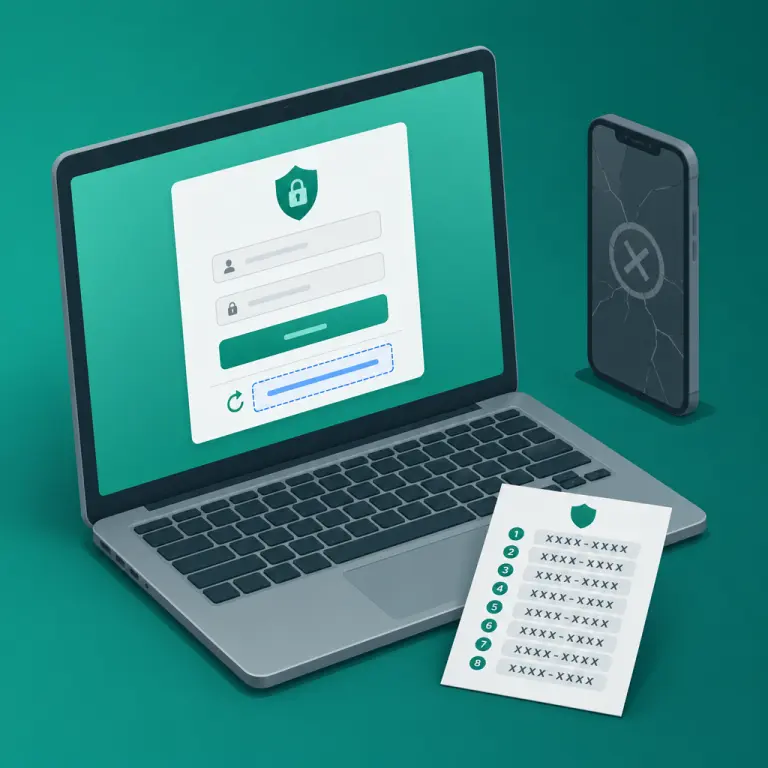
What NoxHash Recovery Codes Are — And Why They Matter
Recovery codes are eight single-use backup keys NoxHash issues when you first enable two-factor authentication. Each code is an uppercase 8-character string in the format XXXX-XXXX (for example, A1B2-C3D4), and any one of them can replace the rotating 6-digit code from your authenticator app at login — exactly once.
They exist for one reason: phones get lost, stolen, wiped, or dropped in pools. Without a backup factor, losing your authenticator would mean losing access to your BTC balance and miners. The NIST SP 800-63B digital identity guidelines specifically recommend every multi-factor system provide a recovery path of this type.
Single-use by design
Each code works once and is immediately consumed. A used code cannot be reused even by you — a property that blocks replay attacks if anyone else ever glimpses your list.
No expiry date
Codes issued in 2024 still work in 2026 — they're valid until used or regenerated. Store them once, forget about them, and they'll be there when you finally need one.
Always regenerable
While 2FA is enabled, one click in Profile → Two-Factor Auth replaces all 8 codes with a fresh set. Old codes are invalidated the instant new ones are issued.
Where to Find Your Codes (Before You Need Them)
If you've just enabled 2FA, you'll have seen your codes on the confirmation screen. If that was months ago, don't panic — the codes still exist inside your account. Here's where to look, in order of how much access you still have:
- Your saved backup. Most users paste them into a password manager (1Password, Bitwarden, Proton Pass) or print them. Check there first — a search for "NoxHash" usually finds the note instantly.
- The profile panel (if still signed in elsewhere). If you're already logged in on a laptop, open Profile → Two-Factor Auth and click Show Recovery Codes to re-reveal the current 8. Copy them to a new backup location before you log out.
- Nowhere you can reach? If you're fully locked out with no saved copy and no active session, skip to the "If You've Lost Both" section below — support-led recovery is the path forward.
Sign In Using a Recovery Code in 5 Steps
Assuming you have one unused code in hand, here's the exact sequence. The whole process takes under a minute once you've got the code ready to paste.
Open the NoxHash login page
Go to noxhash.com/login from a bookmarked or trusted URL. Enter your email and password as usual, then press Log In. You'll be sent to the 2FA challenge screen.
Click "Use a recovery code"
Below the 6-digit authenticator field, you'll see a small link labelled Use a recovery code. Click it. The input changes from a 6-digit numeric field into a text field ready for the XXXX-XXXX format.
Paste one unused recovery code
Copy one of your 8 codes from wherever it's stored and paste it into the field. Include the dash: A1B2-C3D4. Codes are always uppercase — the form normalizes case for you, but clean input reduces typos. Submit the form.
Land on your dashboard
If the code matches, you're in — full access to your BTC balance, miners, transactions, and settings. The code you just used is now consumed; if you had 8 unused codes, you now have 7. Cross it off wherever it's stored so you don't try it again.
Re-secure the account immediately
Don't stop at "I'm back in." Go straight to Profile → Two-Factor Auth, disable 2FA with your password, then re-enable it with your new phone's authenticator app. Scan the fresh QR, save the new recovery codes, and you're fully protected again with a clean slate.
What to Do Right After You're Back In
Using a recovery code works — but it leaves your account in a fragile state. You've got one fewer backup, and the device loss that forced you to use it may have other implications. Work through this 4-step hygiene checklist the moment you're signed in:
Reset 2FA with a new device
Disable 2FA, then re-enable it immediately with your new phone's authenticator. The old shared secret tied to your lost device is now invalid.
Regenerate recovery codes
Click Regenerate Codes to get a fresh set of 8. The used code and any remaining old ones are invalidated in the same moment. Save the new set in two places.
Change your password
If your phone was stolen (not just lost), assume the thief may have access to password-saving apps or SMS. Reset the password and make it unique.
Audit recent activity
Check the transactions list and miner status on your dashboard. Look for any withdrawal, new miner rental, or BTC address change you don't recognize. Report anything suspicious to support.
Regenerate your codes and re-arm 2FA
You've just seen the 4-step hygiene checklist. Head to your profile to disable 2FA, pair it with your new phone, and save a fresh set of 8 recovery codes — so the next lost device is a non-event instead of an emergency.
If You've Lost the Phone AND the Codes
This is the worst case — and it's still recoverable, just slower. If your phone is gone and you have no saved codes, NoxHash support can verify your identity manually and restore access. The process is deliberately slower than self-service because it's the most-abused attack vector on every crypto platform.
What to include in your support request
- • The email address on your NoxHash account (the one you log in with).
- • Approximate registration date and any miner rental purchases you can remember (tier, month, approximate amount).
- • The BTC withdrawal address you've used previously, if any — this is one of the strongest proofs of ownership.
- • A brief description of what happened — lost, stolen, factory-reset, water damage, etc.
- • A way to confirm email ownership — reply to our verification from the same email mailbox.
Expect a business day or two while the team cross-checks. Do not share your password, recovery codes, or BTC private keys with anyone — not even staff claiming to help. Genuine NoxHash support will never ask for those.
Storage Best Practices So This Never Happens Again
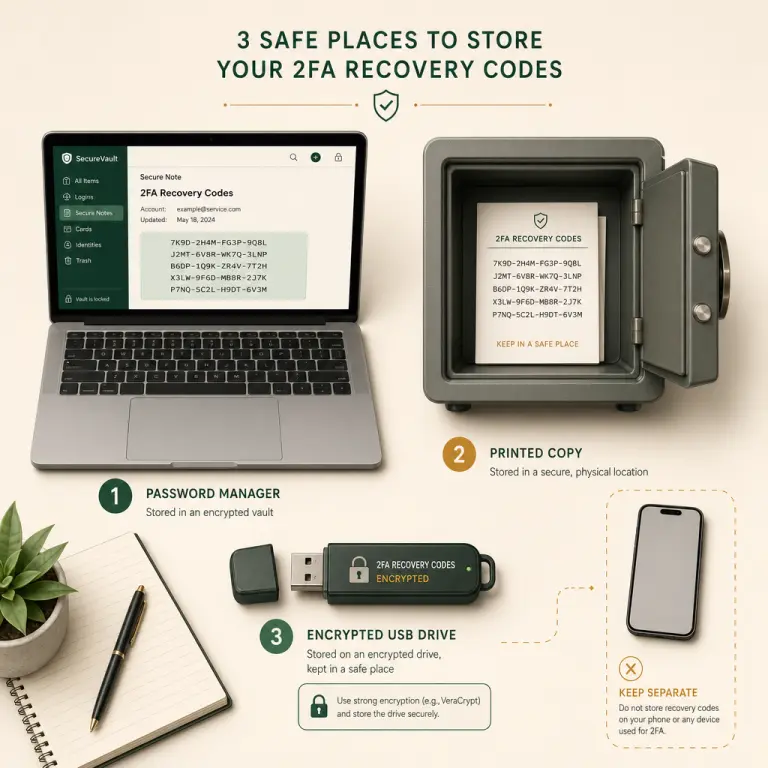
The cost of saving codes properly is about five minutes. The cost of not saving them is a support case and days of stress. Follow two simple rules and you'll be covered for years:
| Do | Don't |
|---|---|
| Save codes in at least two independent places (e.g. password manager + printed copy) | Store codes on the same phone that runs your authenticator app |
| Use an encrypted note (password manager, VeraCrypt volume, encrypted ZIP) | Email codes to yourself in plain text or save to unsecured cloud docs |
| Keep a physical copy offline — printed, in a safe or locked drawer | Photograph codes with your phone's default camera (ends up in cloud backups) |
| Regenerate the set after any single-use code is spent | Rely on "I'll remember" — you won't, six months from now |
Label the backup clearly: NoxHash 2FA recovery — 2026 |
Store codes alongside your NoxHash password in a single unencrypted file |
The core principle is separation of factors: your password lives in your head or a password manager, your authenticator lives on your phone, and your recovery codes live somewhere independent of both. A single device loss should never take out more than one of these at a time.
Frequently Asked Questions
Can I reuse a recovery code after using it once?
No — each of the 8 codes is strictly single-use. Once consumed, the same code cannot sign you in again, even from your own device. This is a security property, not a bug: it prevents anyone who later sees your old list from replaying an already-used code against your account.
How many codes do I get, and what do they look like?
NoxHash issues exactly 8 recovery codes when you enable 2FA. Each is an uppercase 8-character string in the format XXXX-XXXX — two 4-character blocks separated by a hyphen, using letters and digits. They're case-insensitive on input but displayed in uppercase for readability.
What happens if I regenerate while I still have unused codes?
The previous 8 codes are invalidated instantly and replaced by 8 brand-new ones. Even if you memorized an old code, it won't work after regeneration. That's the point — if you think anyone else might have seen your list, regenerate and the old codes become useless to them.
Do I need to be logged in to regenerate codes?
Yes. Regenerating lives inside the profile panel at Profile → Two-Factor Auth, which requires an authenticated session. If you're locked out entirely, you first need to get back in — either with an unused recovery code, or through support-led identity verification if you have no codes at all.
I used a recovery code by accident — should I worry?
Not at all — you're now down from 8 to 7 unused codes. If you want to get back to a full set of 8, open Profile → Two-Factor Auth and click Regenerate Codes. Save the fresh 8 codes in your usual backup location. Nothing else on your account is affected by the single use.
Are recovery codes safer than SMS-based 2FA?
Yes — significantly. SMS codes can be intercepted by SIM-swap attacks, where a thief convinces your carrier to port your number to their phone. Recovery codes stored offline are immune to that. NoxHash pairs TOTP (phone-app codes) with recovery codes for exactly this reason — no SMS in the loop.
Security guidance, not a guarantee
Recovery codes are a strong safety net, but no single control eliminates every risk. Combine them with a unique password, an offline backup, and vigilance against phishing. This guide is educational and not financial or legal advice — responsibility for account security and any related crypto earnings rests with the account holder. If in doubt, contact NoxHash support before acting.