Live Desktop Access — See Your Miner Working in Real-Time
NoxHash View Desktop streams the live Windows Server and CGMiner terminal of your rented miner — full visibility into hashrate, system health, and mining output.
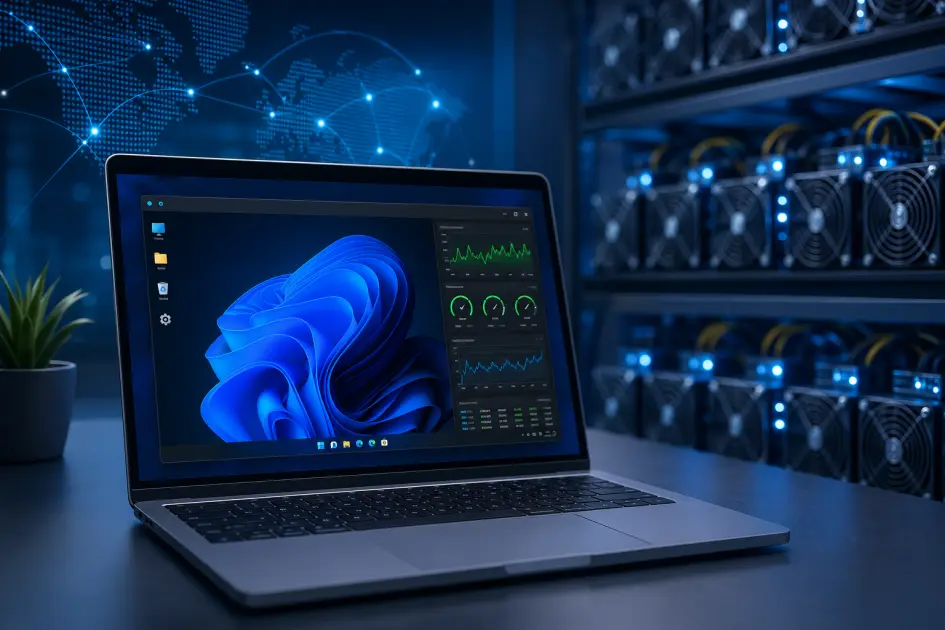
Worried that the hashrate number on your cloud mining dashboard is just a simulation? It is a fair question. NoxHash answers it with View Desktop — one click opens the live Windows Server session of the physical miner you rented, CGMiner terminal scrolling in real time, so you can verify with your own eyes that real hardware is doing the work.
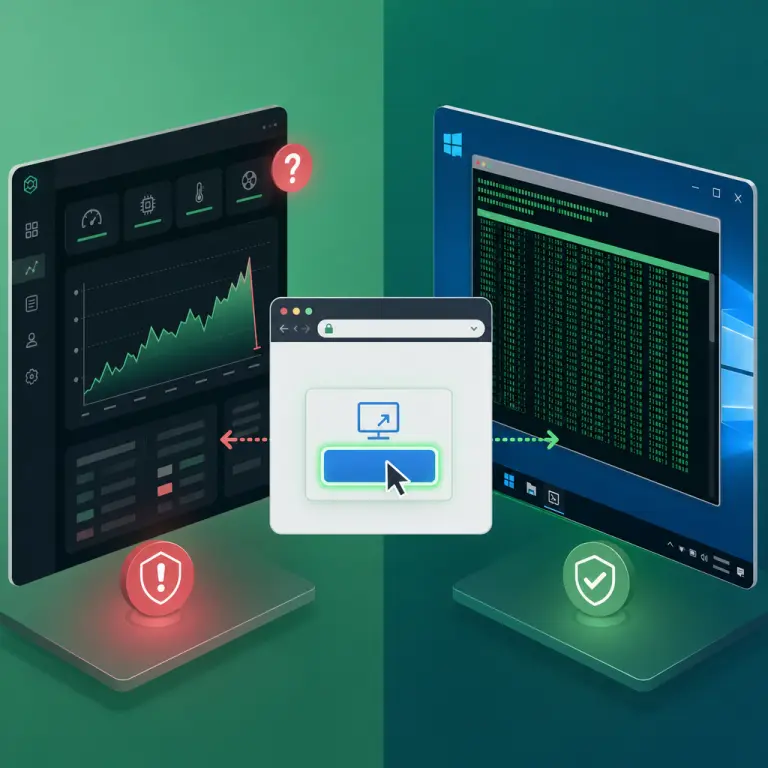
The Trust Gap — Why "Is This Hashrate Even Real?" Is the Right Question
Cloud mining asks a lot of the user. You pay real money to rent hashrate you cannot touch, then watch a chart on a website tell you how much Bitcoin you earned. That is a leap of faith, and it is the exact leap that sketchy operators have exploited for years. The history of the industry is full of platforms that showed pretty numbers, paid "earnings" out of incoming deposits, and vanished when deposits slowed.
Journalists and regulators have flagged cloud mining as a recurring scam vector — for a primer on how the playbook works, see CoinDesk's guide to cloud mining scams and how to spot them. The pattern is always the same: users never see the hardware, so there is no way to tell a real hashrate from a number a backend developer typed into a database.
Dashboard-only proof
A chart on a website proves the website works — not that a miner exists. Fake operators often polish dashboards while running no hardware at all.
Unverifiable earnings
Tiny daily BTC payouts that look legit can still be paid from new user deposits. Only seeing the hardware rules that out.
No audit path
Without visibility into the machine, you cannot tell which pool it is submitting to, whether shares are accepted, or if the temperature is sane.
So the skepticism is healthy — the correct default assumption for any cloud mining offer is that the numbers could be fake until the operator gives you a way to verify. NoxHash built View Desktop specifically to close that gap.
NoxHash's Answer — One Click to the Live Desktop
View Desktop is a browser-based remote session into the Windows Server that runs your specific rented miner, streamed live from our Kazakhstan data center. It is not a recording, not a simulator, and not a cached screenshot. The cursor moves when the operator moves it. The clock ticks forward in real time. The CGMiner terminal scrolls as the ASIC submits shares to the pool.
You reach it the same way every NoxHash user does: sign in, go to My Machines, click View Desktop on any miner whose status is Running. That includes the free 2-day Basic Miner trial — so you can verify the platform with your own eyes before spending a cent. For a deeper walk-through of the access flow itself, see our separate guide on opening the NoxHash mining remote desktop. This article focuses on what to check once you are inside.
- Interactive — you can type in the terminal, open Task Manager, and browse the file system. A recording cannot respond to keystrokes.
- Unique per miner — each rented machine streams its own session, with its own hostname, CPU, and CGMiner logs. A simulator would show the same scene to every user.
- Live from Kazakhstan — the machine sits in our industrial data center where electricity runs $0.03–0.04/kWh and the climate is cold enough to cool the fleet naturally year-round.
5 Things to Personally Verify on the Live Desktop
Opening View Desktop is easy; using it well means knowing what to look at. Work through these five checks in order and you will have first-hand evidence that the miner is a real machine doing real work — not a rendered graph. None of them take longer than a minute.
Type something in the CGMiner terminal
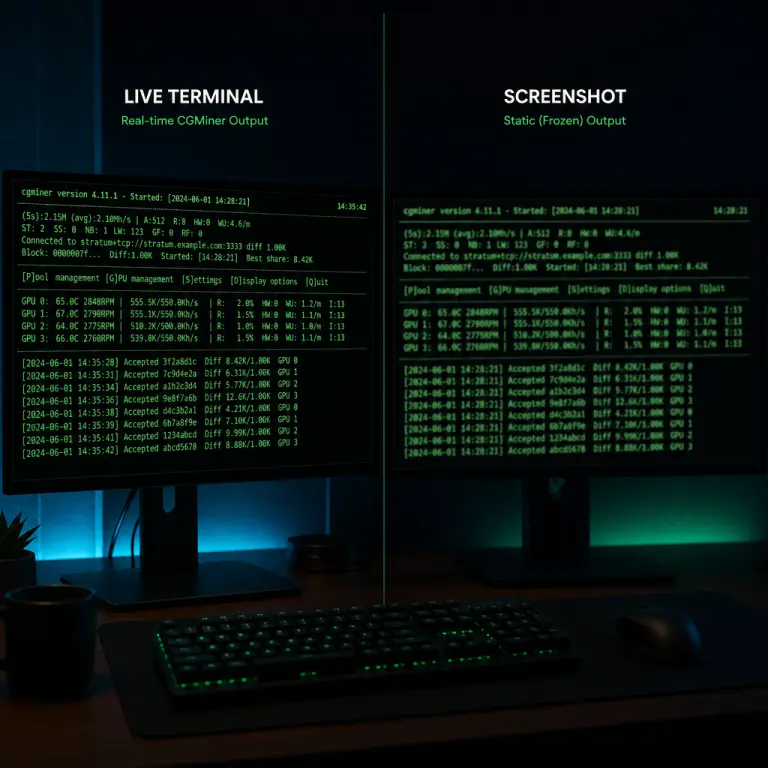
Click into the terminal window and press any key — the character appears inline with the scrolling hash output. A recorded video cannot accept input. An interactive Windows session can. This single test rules out the most common "fake desktop" trick immediately.
Open Task Manager and watch the clock
Press Ctrl+Shift+Esc or right-click the taskbar. You will see the real CPU, GPU, RAM, and disk of the ASIC's host machine updating every second. The Windows system clock should match a real-world time zone, not a frozen value. Real session, real hardware.
Check the CGMiner hashrate against your dashboard
The terminal prints a live hashrate in TH/s — 50 for Basic, 150 for Standard, 350 for Pro, 1,000 for Enterprise. That number should track the one on your dashboard within a few percent. If they match, your dashboard is reporting what the hardware is producing, not making it up.
Watch the Accepted share counter tick up
CGMiner prints a new line every time it submits a valid share to the pool. The Accepted counter should rise steadily — this is the actual unit of work that earns BTC under the FPPS pool model. A rising counter is the single clearest proof that your miner is earning, in a way a screenshot cannot fake.
Browse the file system and logs
Open File Explorer and navigate to the CGMiner install folder. You will find log files with timestamps stretching back across the machine's uptime. Logs accumulate over time — a fake, freshly-booted simulator would not have days of historical share submissions saved to disk.
Run the 5 checks on a real miner — no payment needed
Create an account, activate the free 2-day Basic Miner trial, and work through the verification list above on a live machine. If any check fails, you will know in minutes and you have lost nothing.
Real Live Desktop vs Fake / Recorded — How to Tell the Difference
If you ever sign up with a cloud mining platform that claims to offer "live desktop access", use this table as a quick sanity check. These are the differences between a genuine interactive RDP session and the tricks scam operators have been caught using.
| Test | Real live desktop (NoxHash) | Fake / recorded / simulated |
|---|---|---|
| Keystroke response | Characters appear in the terminal | No response — a video cannot accept input |
| System clock | Advances in real time | Frozen, or loops every few minutes |
| Unique per miner | Different hostname, CPU, log history | Same identical scene for every user |
| Task Manager values | CPU / RAM flicker with real load | Suspiciously smooth or hard-coded |
| CGMiner log files | Days of history with realistic share counts | Missing, empty, or very recent timestamps only |
| Pool connection line | Names a real FPPS pool, status alive | Missing, blank, or placeholder |
| Feature available at all | Yes — from minute one, even on free trial | Usually not offered — the single biggest red flag |
The last row is the most telling. The easiest way to build a scam cloud mining site is to never expose the hardware at all — and that is why platforms without any kind of remote access deserve extra scrutiny regardless of how polished their branding looks.
Your Verification Action Plan — Step by Step
Put everything above into a single short ritual. You can run this on the free trial before you ever deposit, and again any time something on the dashboard looks off.
Step 1: Activate the free trial
Sign up, verify your email, and click the banner to start the 2-day Basic Miner (50 TH/s). No deposit is required, and the trial runs on the same hardware and Windows Server image as paid miners.
Step 2: Click View Desktop
Open Machines, find the trial miner with the green Running badge, and click View Desktop. The live Windows Server session loads in a new full-screen browser view in a second or two.
Step 3: Run the 5 checks
Type in the terminal, open Task Manager, compare the hashrate, watch the Accepted counter rise, browse the log files. Each test takes under a minute and builds independent evidence.
Step 4: Decide from evidence, not marketing
Only after the five checks pass — and you are satisfied the hardware is real — consider depositing USDT and renting a paid plan. Apply the same habit to any cloud mining platform you evaluate in the future.
Frequently Asked Questions
Can I really verify the miner is real before paying anything?
Yes. The free 2-day Basic Miner trial is available to every new account and has full View Desktop access from minute one — no deposit, no card, no KYC. You can complete all five verification checks on the trial miner before deciding whether to rent a paid plan.
Is View Desktop a video recording or a real interactive session?
A real interactive session. Your mouse cursor moves the remote cursor, your keystrokes reach the terminal, and the clock advances in real time. The fastest way to confirm this yourself is to click into the CGMiner terminal and type a few characters — they will appear inline with the live hashrate output.
Does the hashrate in CGMiner always match my dashboard exactly?
They should match within a few percent. CGMiner reports an instantaneous hashrate that fluctuates slightly, while the dashboard shows an averaged figure. Large sustained gaps are rare and usually point to a pool or network glitch — worth checking the Accepted share counter to confirm.
Could NoxHash still fake the desktop somehow?
Faking a fully interactive Windows session that passes all five checks — keystroke echo, live Task Manager, matching hashrate, rising Accepted counter, and days of log history — would cost more than simply running real hardware. The economics only work for a genuine fleet, which is what NoxHash operates in Kazakhstan.
What other signs should I look for when vetting any cloud miner?
Beyond a live desktop, check for specific hardware models named (not generic "ASIC"), a real physical location, transparent pool information, realistic returns rather than "guaranteed" ones, and a working free trial. Anything promising fixed daily profits with no downside deserves immediate skepticism.
Does opening View Desktop reduce my mining earnings?
No. The remote desktop stream runs alongside CGMiner without interrupting it, and earnings continue to accrue on their normal one-minute cadence. You can leave the viewer open while you run the verification checks — the ASIC keeps hashing and submitting shares exactly as before.
Not financial advice
Verifying that real hardware is running is an important first step, but it does not remove the economic risks of mining. Bitcoin earnings depend on BTC price, network difficulty, and market conditions, all of which can change quickly. Past results do not guarantee future performance. Only commit funds you can afford to lose, and consider a local tax advisor for questions about crypto earnings in your country.